3D Printing Projects for Beginners: Small Prints to Start With
By Moopky ·
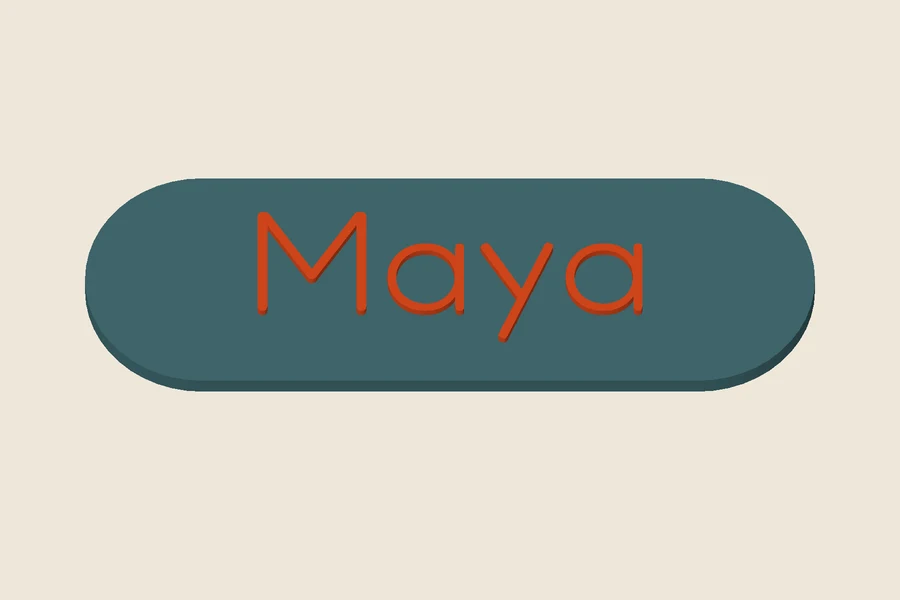
Free STL downloads, no account needed. Unlimited single-model downloads for personal use are offered today; 3MF, full batch downloads and commercial licences are not available. Current download options.
A beginner project should give you something specific to learn without asking you to solve every printing problem at once. A small flat plaque can teach scale, first-layer inspection and raised lettering. A keychain adds a hole and narrow features. A keycap introduces a much more demanding fit question. This guide explains an order in which to try these tasks and how to decide whether to move on. The models shown are engine renders, not photographs of tested prints or a guarantee that a particular machine will reproduce them successfully.
Begin with a flat name plaque
Open the name plate maker and choose the little-label preset or a modest flat rectangle. Use one short word and leave decoration off for the first attempt. A broad back and a simple face make it easier to see what the slicer is doing. You can add a second line or a patterned border later, after you understand the basic dimensions and text relief. Starting simple gives each change an observable purpose.
Read the model size underneath the preview. Millimetres describe the physical geometry, whereas the on-screen camera can make almost any object appear large. Compare the numbers with a ruler and your printer’s usable area. Leave room for a brim or other adhesion aid if your profile needs one. The file is a model, not G-code: it still needs slicing with an appropriate printer and material profile before any machine can print it.
Learn the three previews
The browser preview shows a mesh with illustrative lighting and colours. Your slicer’s model view shows its imported position and orientation. The sliced-layer preview shows the paths your printer is being asked to follow. These are different kinds of evidence. A smooth shaded letter may become several narrow extrusion lines or disappear entirely at a small scale. Inspect all three views instead of treating the first attractive image as a completed print plan.
In the layer preview, start at the bottom. Look for a continuous first layer, then move upward through the body and lettering. Check where separate islands begin and whether supports would be necessary. If a thin feature produces no path, enlarge it or simplify it before printing. A watertight mesh is useful, but it cannot force a nozzle to reproduce details that are too small for the chosen settings.
Use settings as a trial, not a promise
For a typical 0.4 mm nozzle, a 0.2 mm layer height and three walls can be a reasonable first experiment on a small flat plaque. Use the material and temperature requirements appropriate to your own equipment. We have not validated a physical print profile for these models. The important step is checking what the settings actually produce in the slicer, then inspecting a small sample rather than applying a number without context.
Change one thing at a time. If you alter the font, model size, orientation and material together, it becomes difficult to tell why the next result differs. Keep a short note of the model dimensions and the slicer profile used. If the first layer spreads into gaps or corners lift, investigate that printing issue before changing every design dimension. A controlled experiment teaches more than a large collection of untracked variations.
Add a keychain after the plaque
The Little Things keychain maker adds a ring connection and a less regular outline. Start with a bold short name on a rounded base. Inspect how the base supports every letter and how it joins the ring. A script font may look friendly but can include fine strokes and long flourishes that require more care. Do not assume that the same letter-height setting creates the same width for every name.
Make one small sample and inspect the attachment before carrying it. Check rough edges, thin necks and any layer separation. A file that exports successfully has not passed a physical strength test. If the connection looks weak in the slicer or finished sample, revise it before making copies. The keychain colour guide is a next step once a plain version is satisfactory; a single-colour first attempt is enough to learn geometry and fit.
Try an ornament for a different outline
The ornament maker gives you a broad face, optional second line and hanging loop. A bauble is a simpler perimeter to inspect than a star or snowflake-edged round. Add a name and year, then compare the sliced lettering with your plaque. Keep decoration sparse at first. The nominal body size does not include all of the top loop, so check the complete exported footprint rather than guessing from the size control.
This project also teaches why scaling needs care. Shrinking an STL changes the loop opening, wall thickness and text together. Adjust the model in the editor when you want to preserve a more deliberate relationship between features. Inspect and test the printed hanging detail before use. These are decorative keepsakes, and their small parts or pointed edges may be unsuitable for some settings without further assessment.
Save fit-critical projects for a separate lesson
A picture frame needs measurements for a real photograph and a plan for backing or support. A keycap needs an actual switch measurement, a physical test and a full travel check. An adjustable MX-style socket is not a universal-fit promise. Do not force a tight cap onto a switch. Treat it as a tolerance experiment and change one socket dimension at a time.
The letter shell maker adds another distinction: separate loose pieces. Its shell and optional diffuser are arranged next to one another for printing, but they need a fit and attachment review afterward. There are no electrical parts in the file. A cutter introduces thin walls and an additional material-suitability question, especially around food contact. These projects are available to explore, but they each deserve more preparation than a flat label.
Keep a small record of what worked
Save a design in My makes after checking its text and dimensions. Those settings live on the current device; they are not an online backup. Keep your own notes for the material, orientation and slicer profile used in the physical sample. Photograph your own result if that helps your records, but distinguish it from the engine’s digital illustrations. A sample on your printer is evidence about that particular combination, not every model or material.
Moopky’s current free workshop offers personal-use STL downloads without an account while billing is off. You still provide the printer, slicing and inspection. Start with one small object, correct the part you can explain, and then add a new challenge. That sequence turns a downloaded model into a practical learning exercise rather than a collection of settings whose effects you have never observed.