Make a Multicolour Name Keychain with a Filament Swap
By Moopky ·
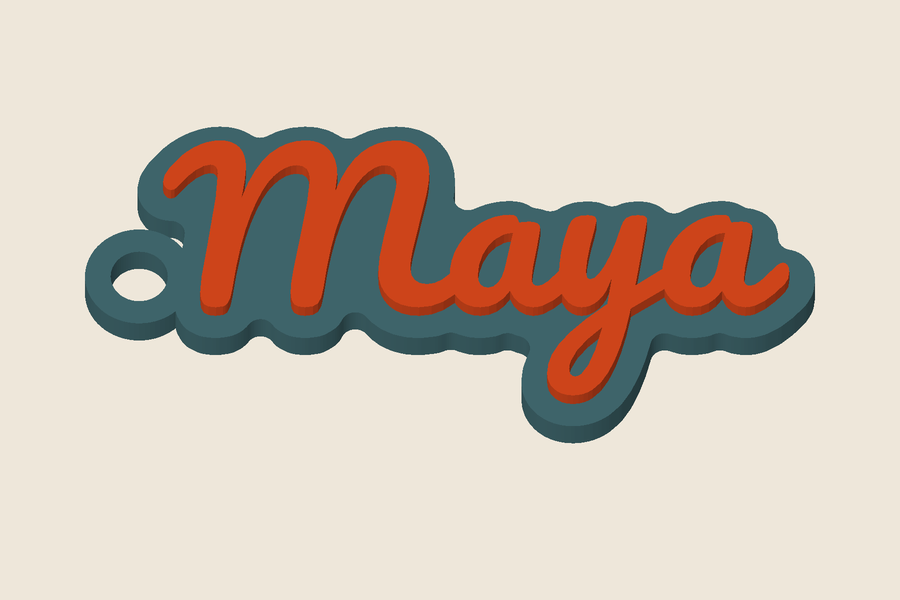
Raised lettering makes a name keychain a useful first project for a height-based filament change. The base prints in one colour, and the letters above it print in another. You can do this with a suitable single-extruder printer that supports a controlled pause and filament change. Automatic multi-material equipment is another option, but it is not required for this arrangement. Always use the procedure supported by your printer and slicer.
The name keychain generator creates the letters, supporting base and ring hole. It does not send instructions to the printer or insert a pause into G-code. The final colour change belongs in the slicer. Our illustration is a digital render with contrasting part colours; it is not a photograph showing the result of a tested filament combination.
Choose a name and a printable font
Enter a short name and compare the bundled font choices at the intended size. Script lettering can look attractive, but narrow strokes and small counters deserve attention. A bold font is often easier to inspect because the smallest features are more visible. Unsupported characters produce an error rather than silently becoming a different name. Confirm spelling, accents, punctuation and capitalization before working on colour.
The name’s length affects total width. Setting the same letter height for Maya and a much longer name does not produce equal-length keychains. Check the actual bounds before promising a size to a customer. A second line can carry a short label, but it also changes the footprint and may make the layout harder to read. Review the generated preview after each change rather than relying on the first sample.
Decide how the base supports the letters
Contour mode follows the shape of the name and joins it into a supported object. Rounded-rectangle mode gives the lettering a more regular plate. Both are useful, but they produce different amounts of background around the text. Inspect small dots and separated letter parts: they need enough area underneath them to survive printing and handling. A smooth shaded preview does not demonstrate physical strength.
Start with 14 mm letter height, a 2.4 mm base and 1.2 mm raised lettering. These are model dimensions to test, not strength specifications. Place the ring on the left, top or right and inspect its connection. Check the hole against the actual split ring you intend to fit. Printed hole size varies with material and printer tuning, so a nominal dimension alone is not a fit test.
Pick STL or named-part 3MF
STL provides the combined geometry without filament colours. For a height-based swap, that is enough: the slicer can assign a pause or colour-change operation at a selected layer. Keep the model flat with the base against the bed unless you have a specific reason to change orientation. Scaling the object later also changes the base height, so finish sizing before selecting the swap layer.
Moopky currently exports STL on its free plan; separate-part 3MF export is not available yet. If you obtain a named-part model from another source, the following distinction is useful. If your slicer supports that structure, import it as a multi-part model and assign filaments there. Preserve the parts’ relative positions. Do not auto-arrange them as unrelated objects, which would separate the letters from their support. The 3MF contains geometry and part names; it does not contain a validated printer profile or automatically know your filament system.
Find the transition in the layer preview
Slice the model and move through the layers around the top of the base. Choose the first layer that prints raised lettering without the surrounding base. Use the actual preview rather than dividing base thickness by a nominal layer height: the first layer can have a different height, and some profiles use variable layers. Verify the paths that will be printed immediately before and after the change.
Add the slicer’s supported filament-change operation at that point. Read the generated operation or preview indicator to confirm it will run on your printer. A generic pause can behave differently from a dedicated change command. If your printer cannot safely resume the chosen command, use its documented method or a different workflow. The model generator cannot verify firmware compatibility and should not be treated as a source of machine-specific G-code.
Change colour without disturbing the part
During the change, follow the printer’s procedure for unloading, loading and purging. Avoid moving the print or allowing the nozzle to drag across the name. A dark first colour can contaminate a pale second colour if insufficient old material is cleared. Purge according to the machine’s instructions and make sure loose strands cannot be carried onto the lettering when printing resumes.
Check whether the materials are compatible with each other and with the selected profile. Two colours of a suitable material are a simpler starting experiment than unrelated plastics. Colour choice also affects readability: compare the text against the base in ordinary lighting, not just a bright screen render. A short test piece can reveal contrast, adhesion and surface problems before you commit to a large customer order.
Inspect before repeating
Once cool, check the ring connection, letter edges and underside. Fit the intended ring carefully and look for cracking or weak areas. Remove any brim without cutting into the eyelet. Do not describe a decorative keychain as load-bearing or child-safe based on appearance alone. If it will be sold, assess the finished object and applicable product requirements separately from permission to use the generated model.
For repeated names, use the batch workshop only after the single-model process is dependable. The current batch tool previews three rows. Full batches, ZIP downloads and commercial licences are not available yet, so use this workflow for personal projects within the free download limit. Inspect the longest name and smallest strokes in each batch. Keep digital files for your permitted workflow, but do not resell generated model files as products. The model licence explains that distinction, and Text to STL is available when a plain sign suits the project better.