Personalized Orders to STL: A Batch Printing Workflow
By Moopky ·
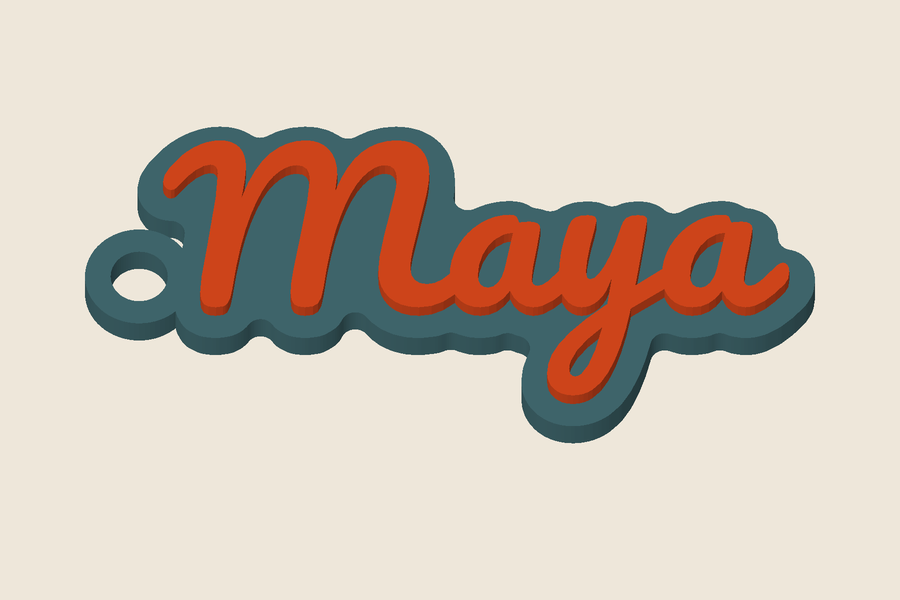
Repeatedly copying customer names into a model editor creates opportunities for omissions and spelling mistakes. A CSV batch can make that work more consistent, provided the source data and mapping are checked first. Moopky’s batch workshop generates name keychains, text models or QR models from rows. It does not connect to an Etsy account, import orders automatically, purchase postage or mark orders fulfilled.
This is a practical workflow for personalized Etsy orders and similar small-shop requests. Etsy is mentioned descriptively; this is not an affiliated integration. The documented example fixture has not been verified against a real export from your shop. Export layouts can differ, so inspect the file you actually have. A familiar column name is a clue, not proof that a field contains the final approved personalization.
Prepare a minimal working copy
Keep the original order export unchanged and make a separate working copy. Retain only the columns needed to build the models and identify the rows. A simple starting file has order and name columns. Avoid bringing shipping addresses, payment details or unrelated customer notes into a model-generation workflow. The tool processes its CSV locally, but minimizing copies still makes your own handling easier to control.
Check leading zeros in order references and the exact spelling of names. Spreadsheet software may reinterpret identifiers as numbers or dates. Export UTF-8 CSV to preserve supported characters. Quote fields that contain delimiters or line breaks, and verify that every row has the same number of columns. Do not silently remove an accent merely because a selected font lacks the glyph; resolve the intended design with the customer first.
Prove one design before making many
Build a representative object in the relevant single-model tool. For keychains, settle on the font, height, base shape, ring position and thickness. For text, decide whether the base plate is needed. For QR models, choose a plate size and confirm that the longest content can produce modules large enough for your intended process. The batch tool applies defaults for unmapped parameters, so know what those defaults are.
A single successful preview does not validate every name. Include a short name, a long name and a name with punctuation or accents in your checks. The width of generated text changes with its characters. A visually balanced sample may hide a problem with another row. The current Moopky licence is for personal use; commercial licences are not available yet. Practice with your own sample names rather than treating a free preview as permission to fulfil paid orders. You also need rights to any supplied artwork.
Load and inspect the mappings
Choose the product, then upload the working CSV or paste a list. For one name per line, turn off the option saying that the first row contains column names. Otherwise the first customer’s name could be treated as a header instead of an order. The tool reports the number of rows it found. Compare that count with your working file before building anything.
Common headers such as name, text, personalization and order ID are mapped automatically. Review the visible Order and Name fields rather than assuming the mapping is correct. Additional settings are under More column mappings. Map a parameter only when the CSV really contains values in the tool’s expected format. A blank or invalid numeric cell can produce a row error; it is not a reliable way to request a default.
Handle personalization embedded in variations
Some export shapes place personalization inside a Variations field. The Etsy mapping option extracts text following a Personalization label from that field and uses Order ID when available. It is a bounded parser, not an understanding of arbitrary customer instructions. Compare its output against the source for names containing punctuation or notes with several labeled values.
If the field includes instructions such as colour choices, gift messages or more than one name, prepare a clean name column yourself. The generator cannot decide which words are the customer’s final approved text. Keep those editorial decisions outside the automated build. A small, explicit working CSV is easier to audit than a complicated mapping that sometimes extracts the right phrase and sometimes includes an instruction.
Preview, build and read the manifest
Free visitors can validate the first three rows before deciding whether the workflow fits. Full batch exports and ZIP downloads are not available in the current free release. Use single-model tools for individual STL downloads within the daily limit. The future full-batch design supports up to 500 rows, but that capacity is not an available entitlement today. Large batches can use substantial browser memory, and ZIP output is capped at 128 MB. Split a complex order set into smaller batches if it approaches that limit. Do not equate the maximum row count with a speed guarantee.
Review every row status after generation. A missing glyph or invalid dimension should appear as an error for that row while other valid rows continue. The archive includes a manifest connecting row, order, name, status and output file. A row suffix prevents duplicate filenames from overwriting each other. Cancel stops the build without downloading a partial archive; rerun a deliberate subset when you want a smaller deliverable.
Slice and fulfil with a second check
Extract the ZIP into a clearly named job folder. Compare the manifest’s successful row count with the number of model files. Open representative files in the slicer and inspect unusually long names or dense QR patterns individually. Group prints by material and dimensions only after that review. A ready status means a file was generated; it does not mean it was physically printed, inspected or approved by the customer.
Keep order references associated with parts through printing, cleanup and packing. Before dispatch, compare the physical text with the approved order record. Retain only the job information you need under your own privacy and retention practices. There is no automatic fulfilment status sent back to the marketplace. For colour changes, see the keychain filament-swap guide; for permission boundaries, read the model licence. A disciplined batch process includes those checks as well as the export button.