02 / LIGHT & SHADOW
Lithophane maker
Let a picture come to light. Make a flat or curved panel that reveals your image when backlit.
Loading editor…
Original sample: Mountain light
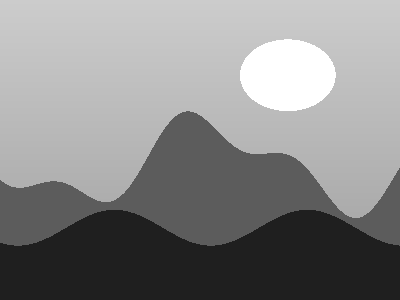
Darker pixels make thicker material. Width is the inner arc length for curved panels. Preview lighting is illustrative.
Taking shape here.
3 free STL downloads per day · personal use · no account needed
Open the file in your slicer, check the scale and thin details, then choose settings for your printer and material.
FROM PREVIEW TO PRINT
How to use the free lithophane maker: photo to stl
A lithophane reveals a picture when light passes through a thin printed panel. This tool translates image brightness into thickness: lighter regions transmit more light, while thicker regions look darker. Generate a flat or curved panel from your photo, adjust its dimensions and download an STL. Processing takes place on your device. The tool does not reconstruct a person or object as a full three-dimensional sculpture.
Choose the viewing method before deciding that the preview is too dark. The displayed mesh is a geometry illustration, whereas a physical lithophane depends on transmitted light. Compare a small crop under the intended backlight and record the material used. In your slicer, inspect internal paths because a sparse pattern can show through the picture. An upright print may need additional adhesion and stability measures; a flat print changes how layer steps appear. Curved mode changes the footprint and needs its own inspection. Keep heat-producing lamps away from unassessed printed enclosures. The generator does not design a lamp or certify a display assembly.
- Choose a photograph with a clear subject and useful contrast. Crop and adjust exposure in your image editor before loading it.
- Start with the flat shape and choose a width. Set minimum and maximum thickness, leaving a meaningful range between them.
- Adjust samples per millimetre for the intended print size. More samples make a larger mesh and may slow older devices.
- Inspect the relief, download an STL and check its thickness in your slicer. Print a small material test and view it against the intended light before making the final panel.
Settings to start with
These are model settings to test, not a validated printer profile. Check the result with your own material, nozzle and slicer.
| Setting | Start with | Why |
|---|---|---|
| Width | 100 mm | A practical starting size for checking detail without a large print. |
| Minimum / maximum thickness | 0.8 / 3.2 mm | A starting range for light transmission; calibrate it for your filament. |
| Samples per mm | 5 | Balances mesh detail and browser workload at the default width. |
| Border | 3 mm | Adds a frame around the image area. |
Common problems and fixes
The image looks too dark
Compare the panel against a brighter, cool-running light source. Test a smaller maximum thickness or a more translucent filament.
The panel looks washed out
Improve source-image contrast and test the thickness range. Sparse internal infill can create a visible pattern, so inspect how the slicer fills the panel.
Frequently asked questions
Does a lithophane need white filament?
A light, translucent material is a useful starting point. Pigment and filament brand change transmission, so test your specific spool.
Can I make a curved lithophane?
Yes. Select Curved and adjust the curve angle. Inspect the resulting footprint and stability before printing.
Is this a full-colour print generator?
No. It generates geometry from image brightness. It does not create a colour-printing profile or a separate colour image backing.
Are my photos uploaded?
No. The image and mesh are processed in your browser. Normal website requests and anonymous activity counts do not contain your photo.
Try another tool
- Text to STL — Give your words some weight. Build dimensional lettering for a desk, a door, or your next project.
- SVG to STL — Take your drawing off the screen. Turn filled vector shapes into clean, solid objects.
- Image to STL — Turn light and shade into a solid relief, or make a flat two-tone logo.