05 / PICTURE INTO FORM
Image to STL
Turn light and shade into a solid relief, or make a flat two-tone logo.
Loading editor…
Original sample: Mountain light
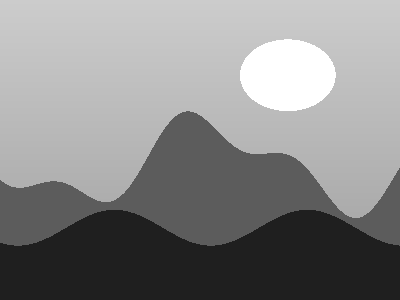
Dark pixels create higher relief unless inverted. Threshold mode makes a flat logo on a base.
Taking shape here.
3 free STL downloads per day · personal use · no account needed
Open the file in your slicer, check the scale and thin details, then choose settings for your printer and material.
FROM PREVIEW TO PRINT
How to use the image to stl converter
Convert a picture into a raised relief or a flat two-tone logo. Relief mode treats brightness as height above a base. Threshold mode separates light and dark regions to make a simpler raised design. Neither mode guesses the unseen sides of an object: a photograph of a cup becomes a surface relief, not a complete cup model. Your image is processed locally in the browser.
Choose the conversion mode according to how the finished object will be viewed. A shaded portrait often suits relief, while a crisp silhouette is easier to evaluate in threshold mode. In either case, work from a copy of the source and retain the original. Increasing relief height exaggerates noise as well as useful detail. If the background rises above the subject, test inversion and inspect the result before export. The width control preserves the image proportions rather than forcing a square. For repeat work, record the crop, mode and dimensions together. The tool does not insert hanging hardware or calculate how a plaque should be mounted.
- Load a clear image. Crop it before conversion so the subject occupies the useful area.
- Choose Heightmap relief for tonal detail or Flat two-tone logo for graphic artwork. Use inversion if the wrong regions are raised.
- Set width, base thickness and relief height. In threshold mode, adjust the threshold while watching which details remain.
- Inspect steep changes and small islands. Download the STL and examine the layer preview; test a small sample before a full-sized print.
Settings to start with
These are model settings to test, not a validated printer profile. Check the result with your own material, nozzle and slicer.
| Setting | Start with | Why |
|---|---|---|
| Width | 80 mm | Keeps a first relief small enough to inspect and test. |
| Base thickness | 2 mm | Provides a continuous backing under the raised surface. |
| Maximum relief height | 4 mm | Gives a visible height range without extreme vertical changes. |
| Smoothing | 1 pass | Reduces small pixel peaks; extra smoothing can remove fine detail. |
Common problems and fixes
The surface has noisy spikes
Use a cleaner source image, reduce contrast artifacts or add smoothing. Compression noise can become real geometry.
The logo loses small details
Adjust threshold, increase the output size, or simplify the artwork. Thresholding cannot recover detail absent from the source.
Frequently asked questions
Is this AI image-to-3D?
No. This is deterministic heightmap and threshold conversion, with no reconstruction of hidden surfaces.
Is it the same as a lithophane?
No. A relief is viewed by its raised surface; a lithophane is viewed with light transmitted through varying thickness. Use the dedicated lithophane maker for backlit pictures.
Can I make multicolour files?
The current download format is STL, which stores geometry without colours. You can plan suitable colour changes in a slicer. Separate-part 3MF export is not available yet and does not automatically reproduce the colours of a source photo.
What happens on an older phone?
Large meshes can use substantial memory. Start small, close unused tabs and reduce the complexity of the source.
Try another tool
- Lithophane maker — Let a picture come to light. Make a flat or curved panel that reveals your image when backlit.
- SVG to STL — Take your drawing off the screen. Turn filled vector shapes into clean, solid objects.
- Cookie cutter maker — Trace your own outline into a cutting wall, grip flange and optional detail stamp.